Importing from Excel or CSV
Fill in many products at once in Excel or another spreadsheet, bring them in as drafts with your own pictures, and change the products you already have by downloading them and uploading the file again.
Esta página aún no está traducida. Se muestra en inglés; todo lo que describe funciona igual en tu idioma.
Products → Import/Export → Import from Excel or CSV brings many products into your shop in one go: you fill them into a spreadsheet, one row per product, and upload the file. The same page also changes the products you already have: download them all as a file, change prices or stock in Excel, and upload the file again.
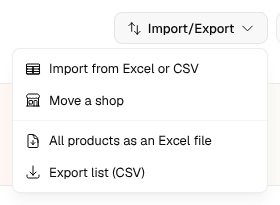
The import is part of every plan and costs no credits. On the Free plan a shop holds five products (Free and Pro), and the import counts only the products it adds: when the file has more new products than the shop has room for, the preview says so and the first ones of the file are imported.
1. Download the template
Template for Excel or Template as CSV. The template has a column for every field of a product, headed in your dashboard's language, and two example products that show what goes where; in Excel a second sheet explains each column. Delete the example rows or leave them in: the import recognises them and skips them.
- One row per product. A product with variants, sizes or colours for example, takes one row per variant, each with the same product name and the variant's name in the variant column.
- Only the product name and the price are required. An empty cell leaves the field empty.
- The SKU is your article number and must be unique in the shop, as in the product form.
- The category, the tags and the descriptions belong to the whole product: write them on its first row. A new category is created. Tags are separated by commas.
- One of a kind takes "yes" or "no". Weights are in grams, sizes in centimetres. Package size and tax category take the words the product form shows.
- Each of your own product fields has a column of its own, headed with the field's name.
- The picture columns take the file name of a picture, for example
mountain-lake-1.jpg. On a product's first row they are the product's pictures, on a further variant row that variant's own picture.
Pictures are never loaded from a link. A link can point at anyone's pictures, and nothing would show that they are yours. You add your own picture files during the import instead, the same way you upload them in the product form.
Excel is not required: Numbers, LibreOffice or Google Sheets work as well, as long as you save the file as Excel (.xlsx) or CSV.
2. Upload the file and check the preview
Choose file, or drag the file onto the page: Excel (.xlsx) or CSV, separated by commas or semicolons, at most 4 MB and 1,000 rows. Nothing goes into your shop yet. First the page shows what the import makes of the file:
- the counts: how many products are ready (or, when the file changes products you have, how many are new, change or stay as they are) and how many have an error;
- What doesn't fit, row by row, with the spreadsheet's row numbers. An Error leaves its product out: a missing price, a SKU your shop or the file already has, a variant name missing on a product with several rows. A Note only leaves one value out, a link in a picture column for example, and the product is imported without it;
- the products as they will be created, with their variants, prices, SKUs, stock and the pictures they name.
Fix the rows in your file and upload it again with Choose another file; the new file replaces the old one. A column the import does not know is named and left out. An old Excel file (.xls) is refused with a hint: save it as an Excel Workbook (.xlsx) first.
3. Add your pictures
When the file names pictures, the page asks for them: Choose pictures for one or several files, Choose folder for a whole folder, or drag them onto the page. They are matched to the rows by file name. Upper or lower case and the ending (.jpg or .png) do not matter, and a picture no row names is left out. The page counts how many of the pictures named were found and lists the missing ones; you can import without them and add pictures in the product form later.
4. Import
Start the import. Every new product is created as a Draft, so nobody sees it in your shop yet. The import runs by itself, and you can leave the page and come back. When it is finished the page says how many products were created and how many of them have no picture. View products opens your list: look the products over and switch Published on.
Notes lists what needs a look, a product left out because its SKU was taken in the meantime for example. A shop runs one import at a time.
Changing the products you already have
Download your products first: All products as an Excel file in the Import/Export menu, or All products as Excel and All products as CSV on the import page. The file has exactly the template's columns, one row per variant, with your products as they are now. Change what you want to change and upload the file on the import page.
- The import recognises a product by its SKU, or by its name when the row has no SKU. If your shop has two products with that name, the row is an error, because it is not clear which one is meant.
- An empty cell changes nothing. Only a filled cell that says something different changes the product, so a file filled in halfway never empties a field.
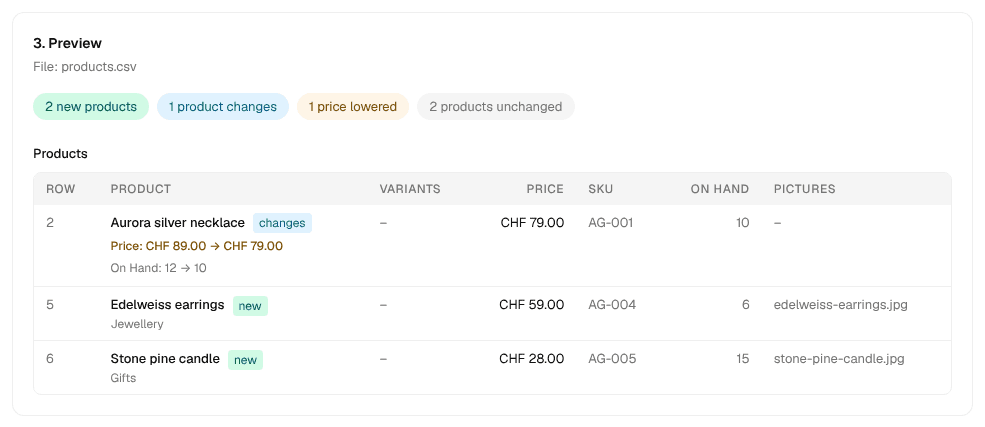
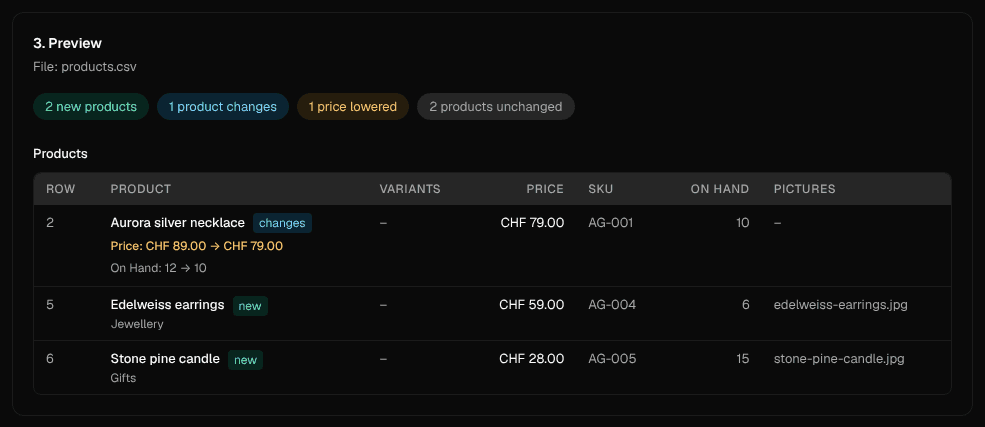
- The preview marks each product as new or changed and lists its changes, with before and after: a lowered price stands out in colour and is counted, a product that would not change is counted as unchanged and left out.
- Changes apply in your shop straight away; only new rows become drafts.
- Stock is set to what the file says. Download a fresh list before you change it, or leave the stock empty, so a sale since the download is not undone. A one-of-a-kind piece that has sold in the meantime stays sold.
- The pictures of a product you already have are not changed by the file, and a new variant of an existing product is added in the product form; the preview says so on the row.
Removing an import
Remove import, on the finished import or beside an earlier one under Earlier imports, takes the products the import created out of your shop again, by the same rule as the trash can in your products list:
- a product nobody ordered is deleted, its pictures with it;
- a product that appears in orders is archived, so the orders keep their history;
- a product with running subscriptions is kept as a draft.
Products the import changed stay as they are now. The page asks once, the removal then runs by itself, and the import stays listed with its date and counts.
What the import does not do
- It does not read another shop system's export, a Shopify or WooCommerce CSV for example. To bring over a shop you run elsewhere, use Moving a shop.
- It does not delete products that are missing from the file. Delete them in your products list.
- It imports physical products. Digital products, subscriptions and gift cards are created in the product form.