Finding your way around
What each entry in the sidebar does, how the list filters work, and what the Overview page is telling you.
Esta página aún no está traducida. Se muestra en inglés; todo lo que describe funciona igual en tu idioma.
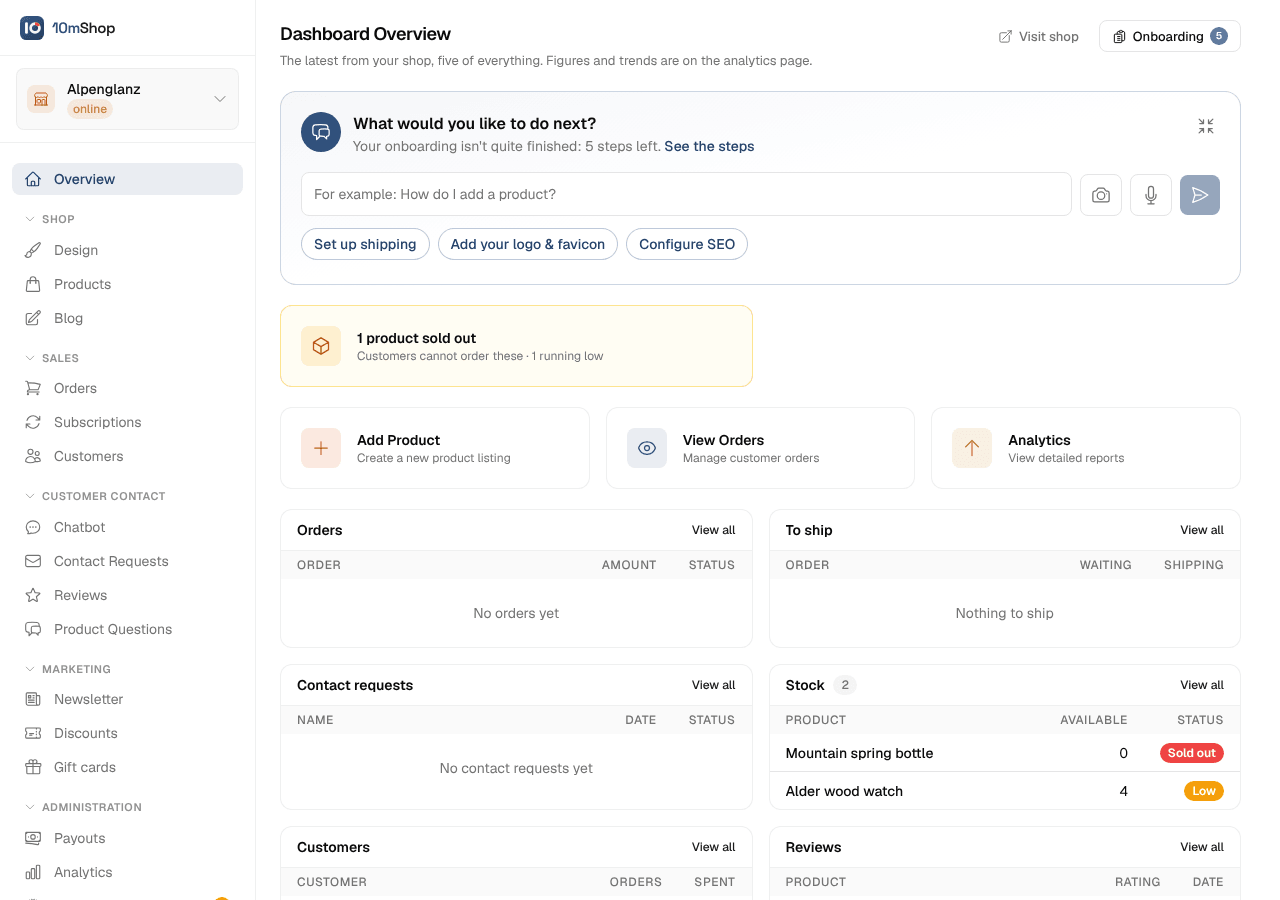
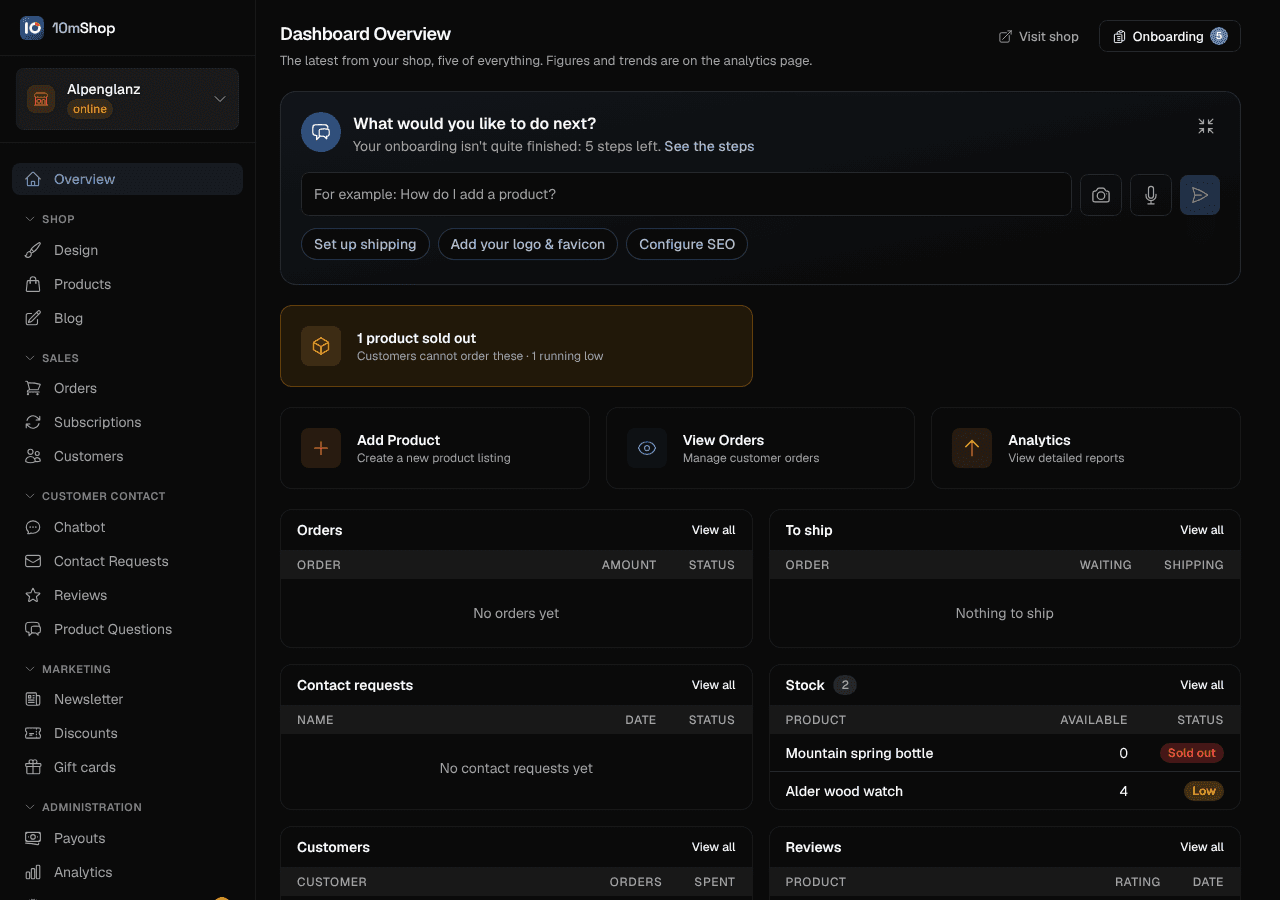
The sidebar
| Entry | What lives there |
|---|---|
| Overview | Your assistant, the setup checklist, anything needing attention, and the five newest entries of everything the shop has. |
| Design | The visual designer — blocks, pages, theme, publishing. |
| Products | Products, variants, stock, AI Photo Upload. |
| Blog | Posts for news, guides and stories. |
| Orders | Orders, order positions, shipments, invoices and credit notes. |
| Subscriptions | Recurring product subscriptions your customers hold. |
| Customers | Customer accounts, what they spent, their carts and wishlists. |
| Chatbot | Every conversation from the chat in your shop, and your live answers. |
| Contact Requests | Messages from your shop's contact forms. |
| Reviews | Verified-purchase product reviews. |
| Product Questions | What visitors ask about your products and your answers. |
| Newsletter | Newsletter subscribers and your unsubscribe link. |
| Discounts | Discount codes and volume discounts. |
| Gift cards | Gift cards you create by hand or sell in the shop, with what each still holds. |
| Payouts | Your Stripe account and payout schedule. |
| Analytics | Page views, sessions and sales. |
| Settings | Everything about the business rather than one product. |
Below Overview the entries sit in five groups: Shop, Sales, Customer contact, Marketing and Administration. A click on a group's name folds it away or opens it again, and your browser remembers which groups you folded the next time you open the dashboard. The group of the page you open always opens with it.
At the top sits the shop switcher (and Add shop); at the bottom your AI credit balance and your account menu. A click on your name opens it: Subscription & AI Credits, Account Settings, then Support (tickets to us and the roadmap), Updates (what is new on 10mShop) and Documentation (this handbook, in a second tab), then the light/dark switch, the legal pages and Sign Out.
A blue number beside Orders, Subscriptions, Customers, Reviews or Newsletter counts what has come in since you last opened that list (for orders, the paid ones and those by prepayment, invoice or cash still waiting for the money) and goes away once you open the list or one of its entries. Like the dots on the Overview page it is remembered per browser, so another device starts without numbers. Beside Contact Requests the blue number counts the messages you have not read yet. An orange number on Settings counts the sections still to do, the ones with a dot on the settings page; an orange exclamation mark on Payouts means your Stripe account is not set up yet, on Design that the shop has no published design yet.
Beside Product Questions the blue number counts the questions still waiting for your answer, beside Chatbot the conversations waiting for you. A folded group shows beside its name the blue numbers inside it added up, and the orange ones added up beside them, so nothing slips past you.
Subscriptions and Newsletter are easy to mix up. Subscriptions are recurring product subscriptions your customers pay for. Newsletter is the list of email addresses collected through your shop's newsletter forms and marketing opt-ins.
List filters work the same everywhere
Every status-type filter in the dashboard is a checkbox dropdown, not a single-choice select. That applies to orders (status and payment), shipments, invoices and credit notes, products (category and status), subscriptions (status and interval), customers (country), reviews (visibility, stars and reply), contact requests and discount codes.
- The button names the filter and sums up the choice: Payment: All, Payment: Paid, Payment: 4 of 5, Payment: None.
- Every box is ticked by default — with one exception: Cancelled in the orders' payment filter, which hides abandoned checkouts.
- A first row ticks or clears everything at once. Long lists (categories, countries) have a search box.
- With nothing ticked the list is empty. The reset button restores the defaults.
- Your choice is remembered per shop, per browser, per list and per tab. Another shop of yours keeps its own choice, and another device starts fresh.
- In the products, orders, subscriptions and customers lists the filters belong to the open view instead, which is saved in the shop.
Column widths
In every big list — products, orders, subscriptions, customers, newsletter subscribers — you can drag the borders between column headings. Widths are remembered per shop, per browser and per view. Double-click a border to reset that column; a list that gets too wide scrolls sideways. Your wide monitor and your laptop keep their own widths on purpose.
The Overview page
When there is something new on the platform, a blue line at the very top says so, with a button that leads to it. A click on the button or on the cross hides it for your account, on every device, until the next news.
Beside the title, the Onboarding button opens the setup checklist as a panel while steps are still open. It never opens by itself. Under the title, four things, in this order:
Your assistant
The field What would you like to do? Ask a question about your shop, by typing or speaking, or tap one of the suggestions below it, and the answer appears right there. It shares its conversation with the round button at the bottom right of every page; more about the assistant.
Things that need attention
Orders to ship, products sold out or running low, unpublished design changes. Once the shop is published, a yellow warning appears at the top whenever the shop is not reachable for visitors — missing or placeholder legal texts, or no payment method. It names what is missing and links to the settings and to your preview.
Three quick actions and the setup checklist
Three shortcuts to the things you do most. The checklist sits behind the Onboarding button beside the title.
The newest five of everything
A grid of half-width cards: orders, orders to ship, the conversations of your chat (whoever answered, with their status), contact requests, low stock, subscriptions (failed payments first), customers, reviews, product questions, active discount codes, newsletter sign-ups and open support tickets. Every row links to the entry. Cards for things your shop has never used are left out.
Rows that appeared since you last looked are tinted and carry a small dot until you open the entry or visit that list page. This is remembered per browser, so another device starts without marks. Discount codes are never marked — you wrote those yourself. A chat conversation keeps the dot it has on the Chatbot page: until you open it, on every device.
There are no date ranges or totals on Overview. Revenue, figures and trends live on Analytics.
System messages
Everything the app says in passing — a save that worked or failed, a purchase that came back from Stripe, a validation hint — appears as a toast in the corner, not as a box in the page. Standing notices that describe a state rather than an event — a setup checklist, "Pro only", a domain waiting on DNS — do stay inline.