Payment methods
Switching methods on, the bank details Invoice and Prepayment need, how cash and pickup differ, card on site and tips.
Esta página aún no está traducida. Se muestra en inglés; todo lo que describe funciona igual en tu idioma.
Settings → Payment Methods. Every method is a card with its badge and name; clicking the card switches it on (highlighted border with a check mark) or off.
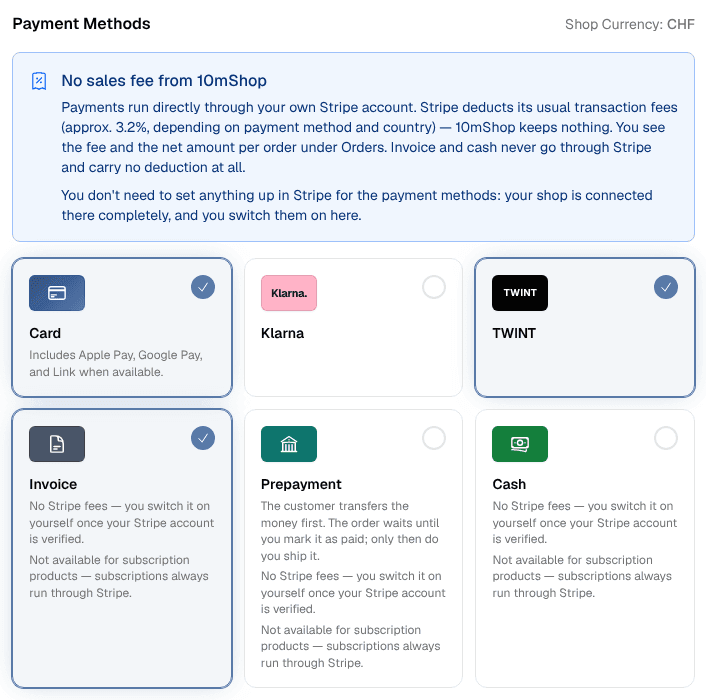
A new shop starts with no payment method switched on. Nothing is preselected, and every method — including the last one — can be switched off again, whether or not the checkout is on.
With the checkout on but no method switched on, a warning appears in the section: customers cannot pay, and the shop stays unreachable for visitors until a method is switched on. Switching the checkout off does not put the shop back either — the launch gate wants an active checkout with a method, so a shop whose checkout is off stays a 404 for visitors.
The checkout itself can only be switched on once your Stripe account is verified — even for a shop that only takes invoice or cash, because Stripe's verification is the identity check for every sale. Switching it off always works.
Stripe methods
Cards, wallets such as Apple Pay, SEPA direct debit, TWINT and PayPal, as your Stripe account supports them. See Stripe and payouts for TWINT's extra step in Swiss shops.
Apple Pay and Google Pay have no switch of their own: they come with the Card method, and Link, Stripe's checkout with saved payment details, can appear beside them. 10mShop registers your shop's address with your Stripe account for them by itself, and your own domain too once it is connected. A customer sees them only on a device and in a browser that offer them, such as Apple Pay in Safari on an iPhone or Mac and Google Pay in Chrome.
Invoice
Switching Invoice on requires bank details in the same section:
| Field | Required |
|---|---|
| Account holder | yes |
| IBAN | yes — the check digits are validated |
| BIC | optional |
| Bank name | optional |
| Payment term in days | yes |
The settings cannot be saved while these are missing or the IBAN fails its check digits, and Invoice is not offered at checkout until they are complete.
The bank details are printed on every invoice paid by transfer, together with the due date and the invoice number as the payment reference. They are frozen into the document when it is issued, so changing your account later never alters an invoice that already went out.
The Swiss QR-bill
A shop with a Swiss or Liechtenstein IBAN gets the Swiss QR-bill instead of printed bank details. Every invoice paid by transfer in CHF or EUR ends with the payment part and the receipt — QR code, account, reference, amount, and the customer's billing address as the payer — across the bottom of its last page, or on a page of its own when the text leaves no room.
The QR-bill box under the bank details has:
- a switch — on by default for a Swiss or Liechtenstein IBAN, unavailable for any other
- an optional QR-IBAN — with one, the payment part carries a QR reference
derived from the invoice number; without one it carries a Creditor Reference
(
RF…) and the ordinary IBAN
The payment part needs your company address complete with street, postal code, town and country. An invoice issued while it is incomplete gets the bank details in text, as before. Existing invoices are never changed.
Prepayment
Prepayment works like Invoice, with one difference: the customer pays first, and you ship once the money is in. It needs the same bank details as Invoice, but no payment term. It stays off until you switch it on.
- At checkout the customer reads that they pay in advance by bank transfer and that the order ships once the payment has arrived.
- The invoice says "Payable in advance" instead of a due date, with your account and the payment reference, or the Swiss QR-bill.
- The order confirmation email adds the amount, your account and the payment reference, whether you wrote your own text or use the built-in one.
The order stays pending until you mark it paid, by hand or by importing your bank file. Until then the order page reminds you to ship only once the money has arrived, and the ordered pieces stay reserved in stock, as for an invoice order. Cancelling the payment frees them again.
Cash
Cash is a payment method like any other. It is separate from collection in person, which is switched on under Settings → Shipping & Delivery.
A customer may combine them freely: collect an order paid by card, or pay cash for something that ships.
Where you deliver yourself, the checkout asks a guest paying cash what they pay with („I will pay with“, optional, never less than the amount). The kitchen and the order's page then show how much change the driver takes along.
Card on site
Card on site is for a shop or restaurant with its own card terminal: the customer pays by card on pickup or delivery. It stays off until you switch it on. As with cash, the order stays open until you mark it paid, on its page or with Paid in the kitchen, and its pieces stay reserved until then. Stripe is not involved, so there is no fee.
Tips
Switch them on under Settings → Checkout Customization, in the Tips box. The checkout then asks „Tip for the team“: none, 5 %, 10 % or 15 % of the goods (after a discount code), or an amount of their own. It is off until you switch it on.
- The tip is added to the total and paid with the order, online or on site.
- The invoice shows it on a line of its own, „Tip (no VAT)“, outside the VAT.
- The order's page, the kitchen and the order confirmation name it.
- A credit note over part of the order gives back the matching part of the tip.
A tip carries no VAT when you pass it on in full to your team and the invoice shows it separately (in Switzerland, VAT sector info 08). If you keep all or part of it, ask your accountant.
Not for subscriptions
Invoice, prepayment, cash and card on site never apply to subscription products — subscriptions always bill through Stripe. In a shop whose products are all subscriptions, the offline methods are automatically switched off and their toggles locked, and the card says why. They unlock as soon as a non-subscription product exists.
Reconciling invoice payments
When the money for an invoice or prepayment order arrives by bank transfer, you can either mark the order paid by hand or import your bank file. See Importing bank payments.