The AI assistant
Generating a block, a page or a whole shop — what each scope does and where the result lands.
Esta página ainda não está traduzida. É apresentada em inglês; tudo o que descreve funciona da mesma forma no seu idioma.
The AI Assistant button in the designer toolbar opens a panel that works on one scope at a time.
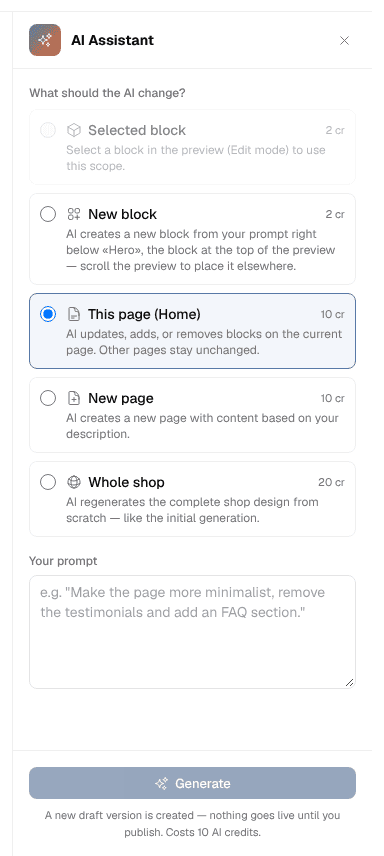
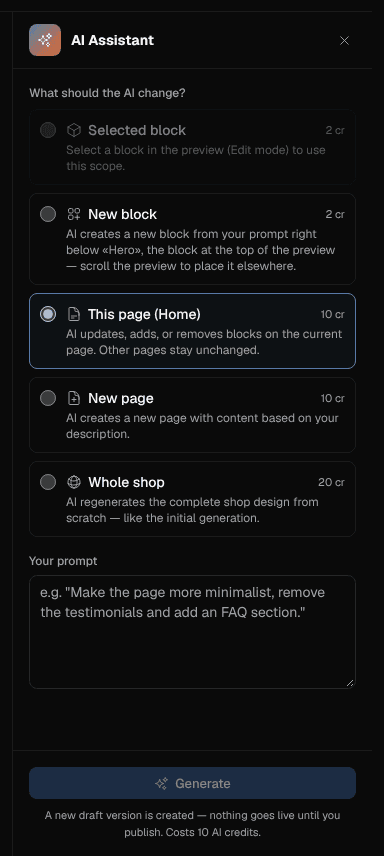
The five scopes
Without words
The text field is optional in every scope. Leave it empty and the AI makes what fits your shop, your products, the page and the spot: a block the blocks above and below do not have yet, the selected block anew in its role, a page from its name, or a whole design from your shop. The same goes for the block library and for Manage pages.
What the AI reads
The generator uses your products and your company details from Settings to write text that is about your business rather than about shops in general.
Open the designer before at least one product exists and before the essential settings are filled in, and it shows a notice saying the AI needs more information, with links to create a product and to settings. Generation still works — the result is just more generic.
Things the AI does on its own
- Places stock videos from Pexels where they fit, typically hero backgrounds.
- Sets the Categories filter on a product block when your request names one kind of product ("a shelf with our rackets"), using your existing category names.
- Sets rules under Your own fields on a product block when your request names a value of one of your product fields ("the paintings by Anna Muster", "only signed prints"), using the values your products hold. On the Free plan it sets none.
- Switches the whole theme to dark when you ask for a dark shop — see Theme.
- Gives a new design at least one section in a strong brand colour, and lets the sections appear in more than one way as visitors scroll, so a new shop does not look like every other one.
- Gives every page its own hero design: it never builds a hero in a design another page of your shop already shows. A hero you pick yourself in the block library stays as you chose it.
- Respects the page: it will not add a product hero, product info, product details or product reviews block to a page that is not the product detail page.
- Will not create a product reviews block while reviews are switched off.
Wishes that are not for the design
Before the AI uses credits, it checks for free whether your wish is about the design. A new price, the stock, an order, a discount, shipping, payment methods or a legal text do not belong there: the panel says so and offers Let the assistant do it. Your wish then goes to your assistant, which prepares a card to run. Beside it a button leads to the right list or setting, for customers and gift cards only that one. Try it in the design anyway generates as usual.
Everything stays a draft
The AI writes into the designer version. Your live shop does not change until you press Publish, and Version History can roll back anything it did.
Films from the AI
The Create with AI window makes a new picture from your words with the Photo switch, and with the Video switch it turns one of your own pictures into a short, silent film: the product turns once all the way round, lies in pieces and assembles itself, gets unpacked, floats in, changes colour or is shown in use — or whatever you describe in your own words. You find the window in three places:
- in the designer, under every image slot and in the galleries' grid editor;
- in the Assets window, where the picture or film goes straight into the slot you opened it from;
- in a product at the main picture and under Additional images (Product images).
Pick up to three of your own pictures (product photos or uploads; stock photos cannot be used) and say where each one belongs: the start, the end or somewhere in between. For a turn the same picture is the start and the end, so the film loops. Choose 5 to 10 seconds. The scene comes from your words: say where the product is and what is around it, such as a wooden table or a gallery that people walk through; without that, the background stays as in the photo. Under your words you can click the colours of your design, several if you like, and say in your words what each is for ("plain background in the first colour, the wall in the second"); one colour without a note becomes the background. The AI matches a tone roughly, never to the exact code; a start picture on a plain background blends best, and Hero 13 and 14 take the finished film's background colour themselves (Working with blocks). When the product has a size on its product page, the AI knows it and keeps the scene in proportion.
A picture at the start does not mean the film ends there too: it goes as far as your words lead it. If it should arrive back at the picture, set the picture to End or say so. You can also choose no picture at all: the AI then makes the film from your words alone. Describe exactly what can be seen and what happens, and choose the format (landscape, square or portrait).
A film costs 30 credits for 5 seconds and 5 credits more for every further second, so 55 credits for 10 seconds; the dialog shows the price for the length you choose. It usually takes one to three minutes. You see it first and decide: Take it puts it into the slot or the gallery, Discard deletes it (the credits stay spent) and lets you try another wish. A film the AI cannot make returns the credits. The finished film sits with your design assets or in the product's gallery and counts towards your shop's room for videos. In Hero 13 the film turns along with the visitor's scrolling (Working with blocks).
The AI invents what it cannot see: the back of the product, its separate parts. Text, glass and very fine details go wrong more often. That is what the preview is for.
What it costs
Layout generation, text improvement and image generation all consume AI credits.